This booklet matches firmware version 2.1.0. (Your box shows its version under SETTINGS → SYSTEM → FIRMWARE UPDATES, and at the bottom of the HELP screen. Newer versions may add a few things not pictured here — but everything in this guide still works.)
What this little box does for you
- It watches the electricity coming into your rig from the campground pedestal, all day long.
- It shows you, right on its screen, how much power you're using — and whether everything is healthy.
- It keeps a running total of what your electricity has cost this stay, in dollars and cents.
- It keeps a day-by-day diary of your power use, so you can look back over the month.
- If you ever host a guest, it can measure their electricity and print them a fair receipt.
- Best of all: it can buzz your phone if the power goes out — even when you're across the campground.
Tap around all you like. You can't break anything. Every screen has a < BACK button, and almost everything is one tap to undo.
The first time you set it up
(You only do this once. The pedestal gadget — the "Watchdog" — is already installed for you.)
- Plug the box in and set it somewhere you'll see it. It turns on by itself.
- The screen shows FIRST-TIME SETUP with a big square code.
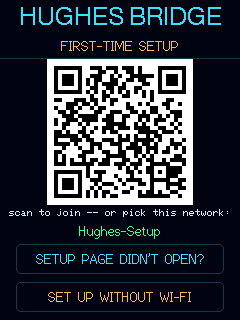
First-time setup screen - That square is a QR code a barcode your phone's camera can read. Point your phone's camera at it. Tap the message that pops up.
- A page opens on your phone. Pick your campground's Wi-Fi the wireless internet you already use from the list. Type its password — the same one your phone uses.
- That's it. The box finds the Watchdog on its own and shows your power within a minute.
Stuck? Unplug the box, count to ten, plug it back in. It remembers everything.
Reading your main screen
This is the screen you'll glance at most.
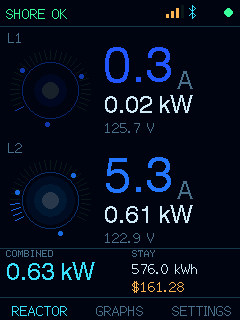
- SHORE OK (green, top-left) — all healthy. Green is good. Any other color means the box noticed something worth a look.
- The two round dials, L1 and L2 — a 50-amp hookup brings power in on two lines, called legs think of two water pipes feeding your rig. Each dial shows one leg:
- the big number is amps how much electricity is flowing — like how fast water moves through a pipe,
- below it, kilowatts (kW) how much power that adds up to,
- and volts the "pressure" of the electricity — around 120 is normal.
- COMBINED (bottom) — both legs added together. Your total power right now.
- STAY (bottom) — electricity used since your stay began, in kWh kilowatt-hours — the unit on your electric bill, plus its cost in dollars.
A handy trick: if that top-left word ever turns amber or red — say SET THE CLOCK or ALERTS OFFLINE — just tap the word itself. The box jumps straight to the screen that fixes it.
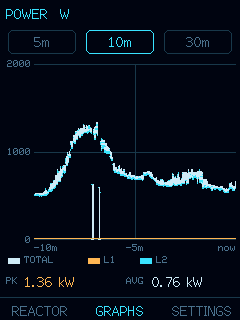
Curious? Tap GRAPHS at the top for a little history of your power use.
★ Get a buzz on your phone if your power goes out
This is the most important page in this book — and it's easy. Five minutes now, and you'll never come home to a warm fridge again. If the pedestal trips while you're out, your phone buzzes with a message, just like a text.
⚠ One thing first — the box needs internet for this. Phone alerts travel over the internet, so the box must be joined to your home or campground Wi-Fi (the kind with internet). Without Wi-Fi, the box still shows your power on its own screen — but it can't buzz your phone. You set this up in "The first time you set it up." If you skipped it, do that first.
- On the box, tap SETTINGS at the top.
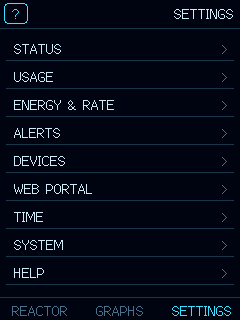
The settings menu - Tap the ALERTS row.
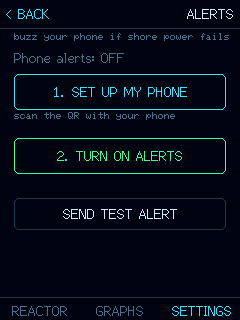
Alerts (on the device) - Tap SET UP MY PHONE. A QR code appears.
- Point your phone's camera at it. Tap the pop-up. Your phone offers a small free app called ntfy the messenger that delivers the box's alerts. Install it and open it once.
- Back on the box, make sure alerts are switched ON.
- Tap SEND TEST ALERT. Within a few seconds, your phone should buzz.
Did it buzz? You're done. From now on, if shore power drops, you'll know right away — wherever you are.
No buzz? Open the little app again and allow notifications when it asks. Then tap SEND TEST ALERT once more. That fixes it nearly every time.
Choosing what it tells you (optional)
On the phone page's Alerts tab you can tick exactly which things buzz you — power lost, power back, running on battery, a voltage problem, a heavy load, or the Watchdog dropping out. Leave them all on and you're well covered.
There's also an optional daily "all good" message: pick an hour and once a day your phone gets a cheerful check-in. That way, silence means something's actually wrong — not that the messenger quit. It's off unless you turn it on, and it needs the clock set (see "Teaching the box the time").
Opening the page on your phone
Everything the box shows, your phone can show too — handy from a lawn chair.
- On the box: SETTINGS, then WEB PORTAL.
- A QR code appears. Point your phone's camera at it and tap the pop-up.
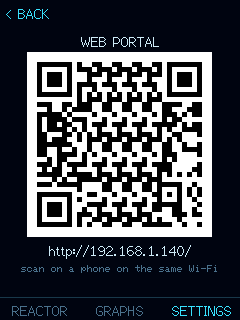
The web-page code - A page opens with a row of tabs:
- Status — the same live power numbers as the box.
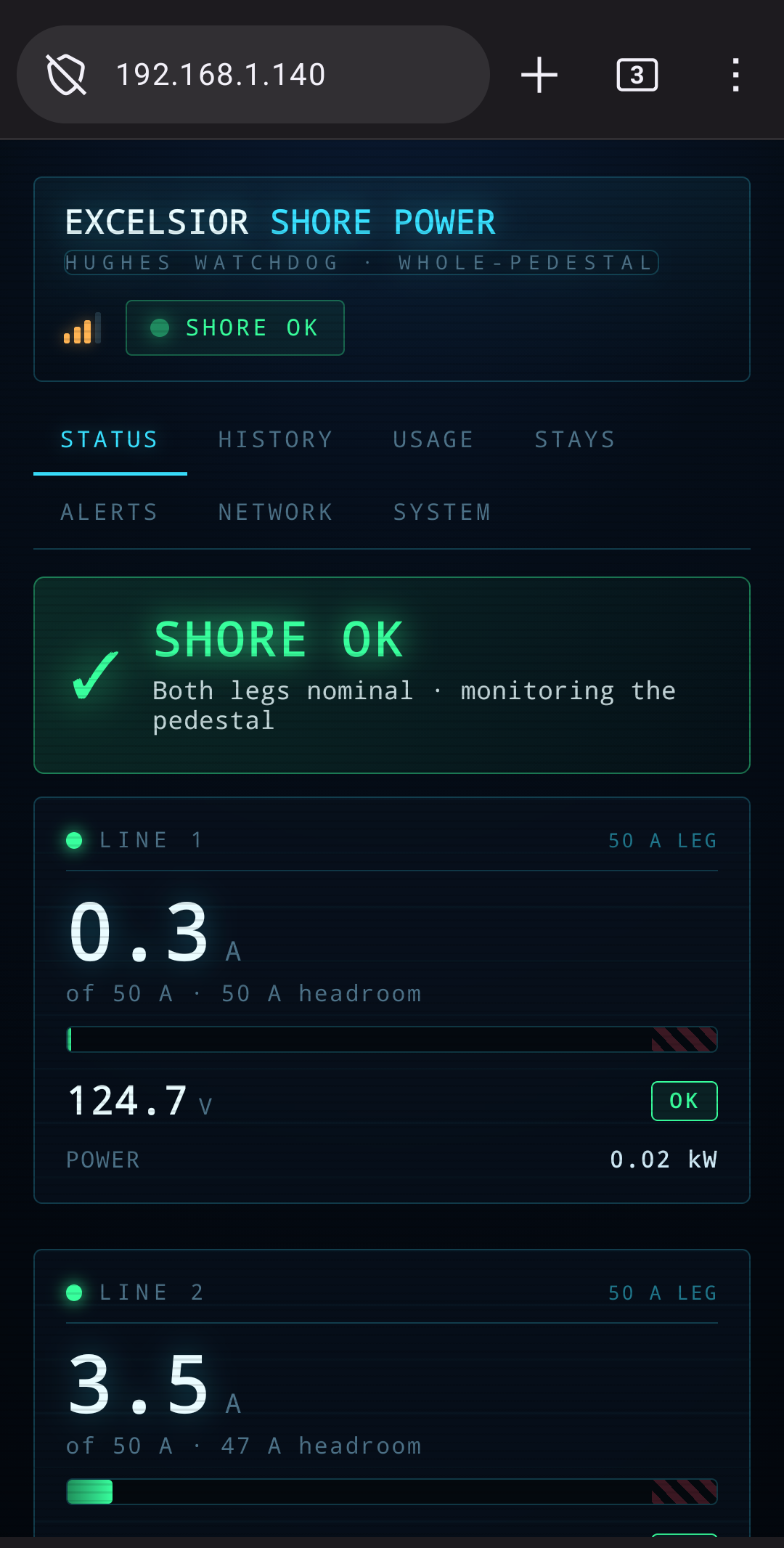
Phone page — Status - History — graphs of your power over time.
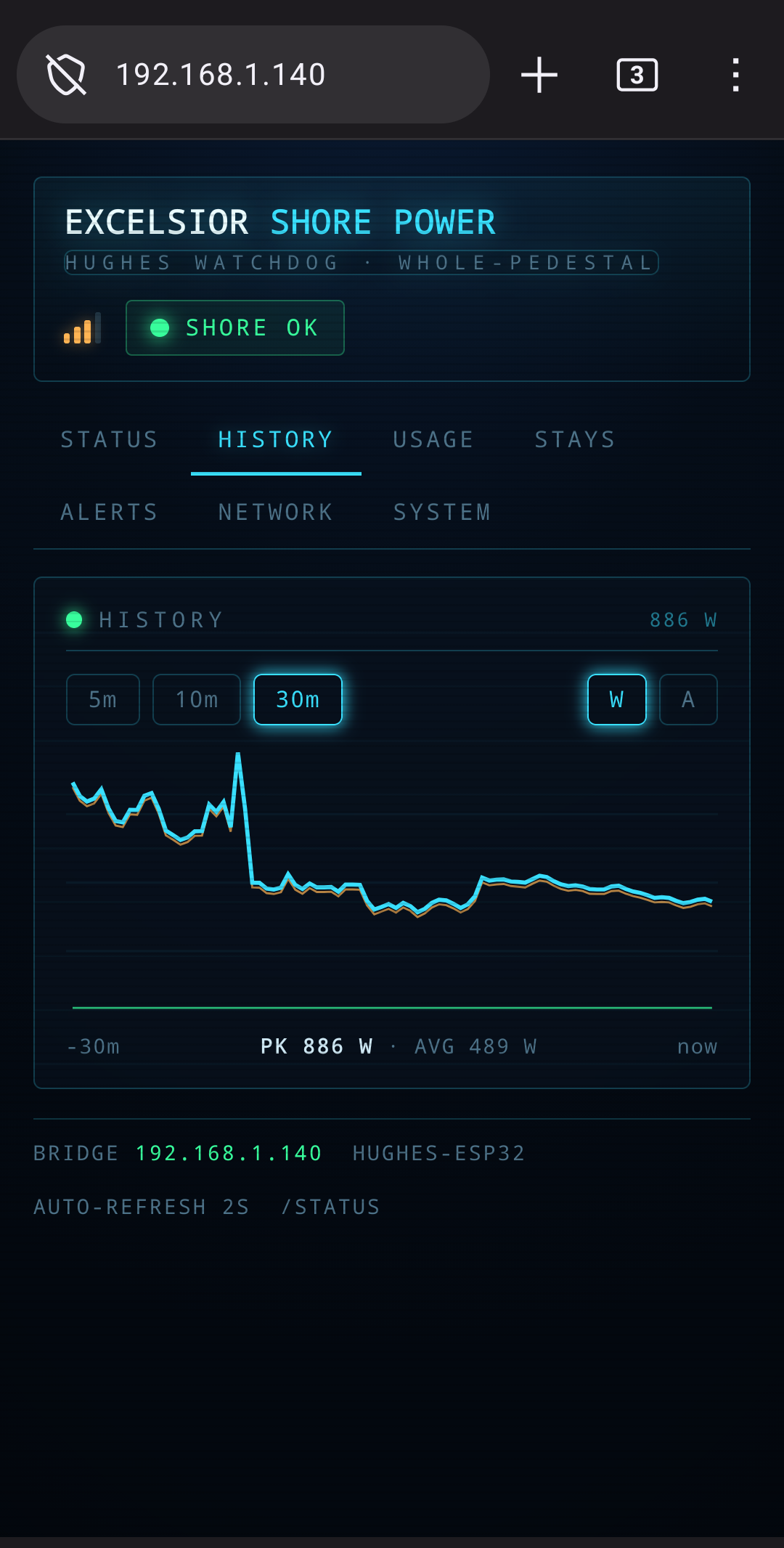
Phone page — History - Usage — your day-by-day electricity diary, with a print button for a tidy invoice.
- Stays — check guests in and out, and print their receipts (see "Hosting a guest").
- Alerts — the same phone-alert switches, plus a test button.
- Network — Wi-Fi settings. You already did this — no need to visit.
- System — odds and ends: a name for your rig, your electricity price, brightness, and the clock.
- Status — the same live power numbers as the box.
Tip: while the page is open, save it to your phone's home screen. Next time it's one tap away.
Setting your electricity price
So the dollar total matches what the campground actually charges:
- On the box: SETTINGS, then ENERGY & RATE.
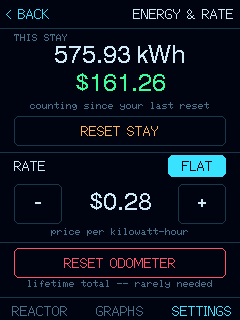
Electricity price & totals - Enter the campground's price per kWh. Not sure? Ask the office — it's usually 10 to 40 cents.
- Tap < BACK. Done — the STAY cost now uses your real price.
(Charged a different price at different times of day? The phone page's System tab has a "Time of day" option. Most people never need it — skip it unless your campground works that way.)
Starting a fresh total for a new stay
Moving sites, or starting a new month?
- SETTINGS, then ENERGY & RATE.
- Tap RESET STAY. The running total and its cost start over from zero. (This only clears the counter — it never deletes any guest receipts.)
(Ignore RESET ODOMETER — that's the box's lifetime grand total. It even politely refuses while a guest is checked in, to protect their receipt. Leave it be.)
Hosting a guest? Let the box do the math
Don't host guests? Skip this whole page — nothing here needs setting up.
If a friend plugs into your pedestal for a weekend, the box can measure exactly what they used and print them a fair receipt — no guesswork, no arguments.
Think of the box as a meter reader. When your guest arrives you "check them in," and the box writes down the meter reading — just like the electric company does when you move into a house. When they leave you "check them out," and it writes the reading down again. The difference is exactly what they used.
You do this from the phone page's Stays tab.
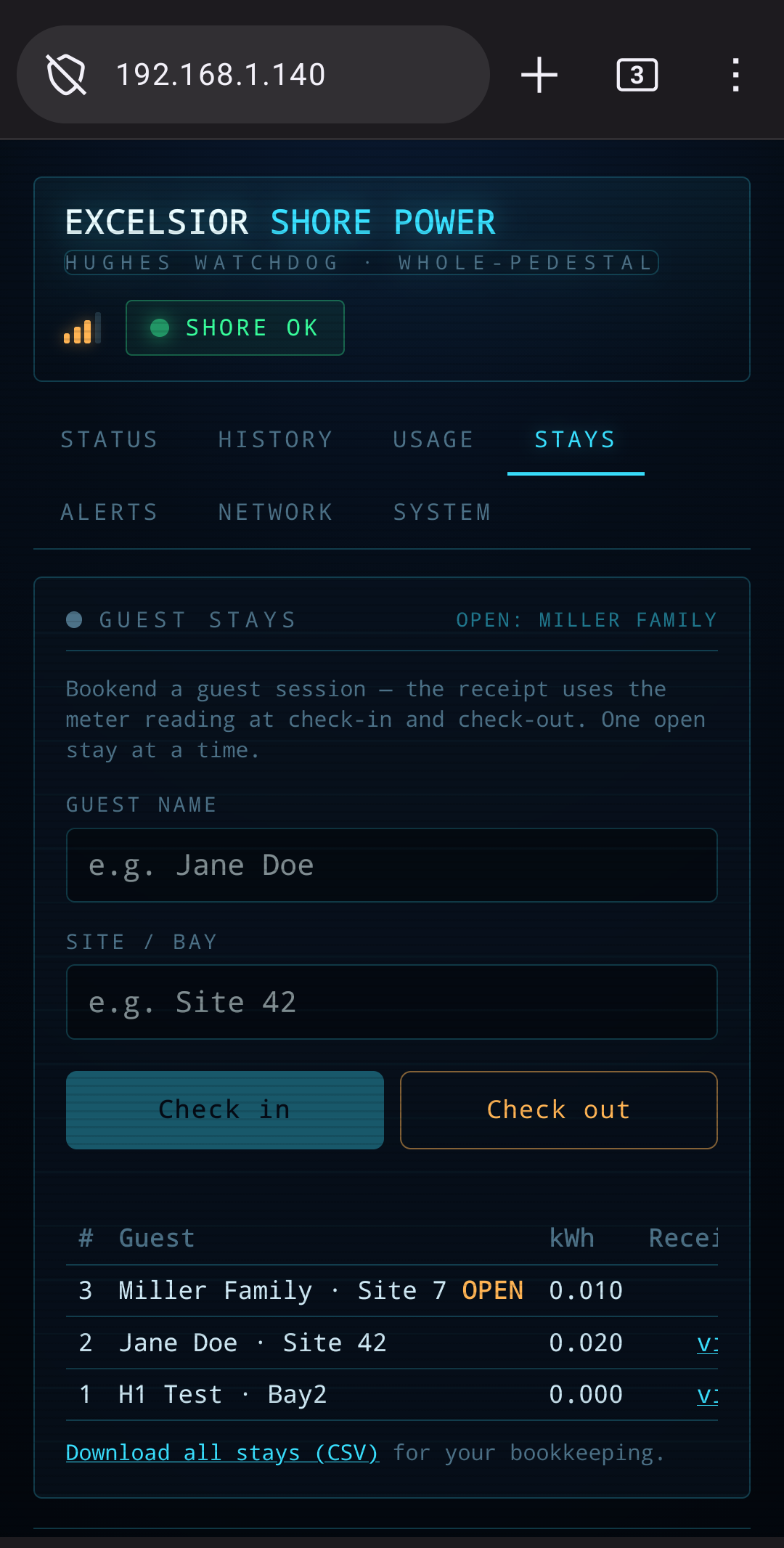
- Open the phone page (SETTINGS → WEB PORTAL, scan the code) and tap Stays.
- Type your guest's name — and their site, if you like — then tap Check in.
- When they leave, tap Check out. (The phone asks "are you sure?" — that's normal.)
- In the list below, tap view next to their stay. Their receipt opens.
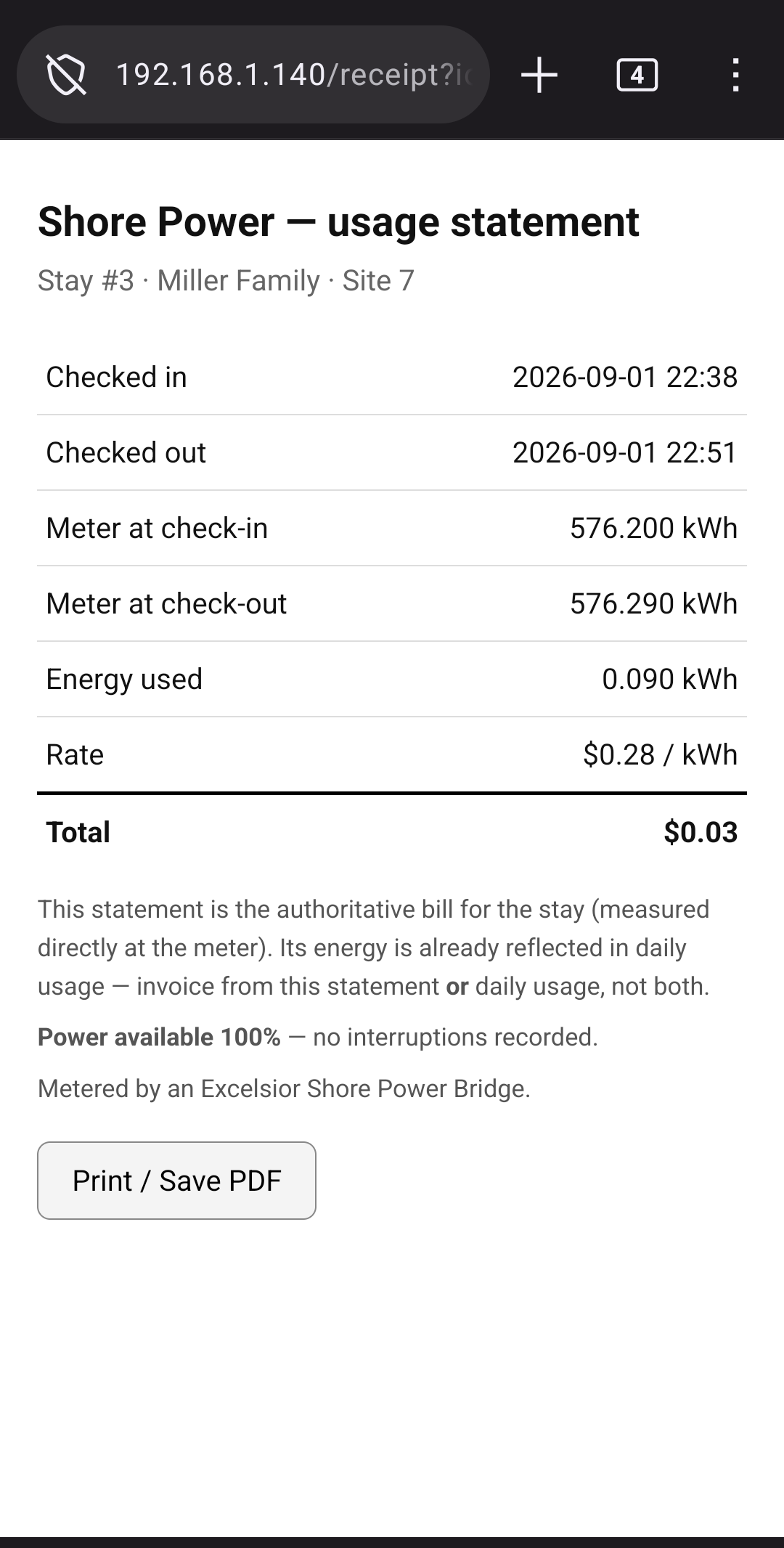
A guest's receipt - Tap Print / Save PDF — print it at the office, or just show them the receipt on your phone.
A few friendly notes:
- One guest at a time. Check the last guest out before checking the next one in.
- Forgot to check someone out? No harm done — the receipt still uses the real meter readings. And if the pedestal sits idle for about two days, the box quietly checks them out for you (the receipt just says "(auto)").
- The receipt vouches for you. It shows a "Power available" line — "100% — no interruptions recorded" means the pedestal never blinked during their stay. If the power did drop, it says for how long the share of their stay the pedestal actually had power. No more disputes about whose fridge thawed.
- For your own books, there's a Download all stays link that saves the whole list to a spreadsheet.
Your day-by-day electricity diary
The box quietly keeps a 30-day diary of your power use. On the box, tap SETTINGS → USAGE.
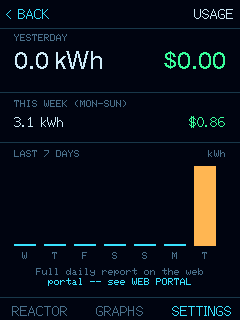
- Yesterday and this week in kWh and dollars, and seven little bars for the last week.
- Today's bar is a different color because today isn't finished counting yet.
For the full month — and a printable invoice — open the phone page's Usage tab. Tick the days you want, type who it's for, and tap Print invoice.
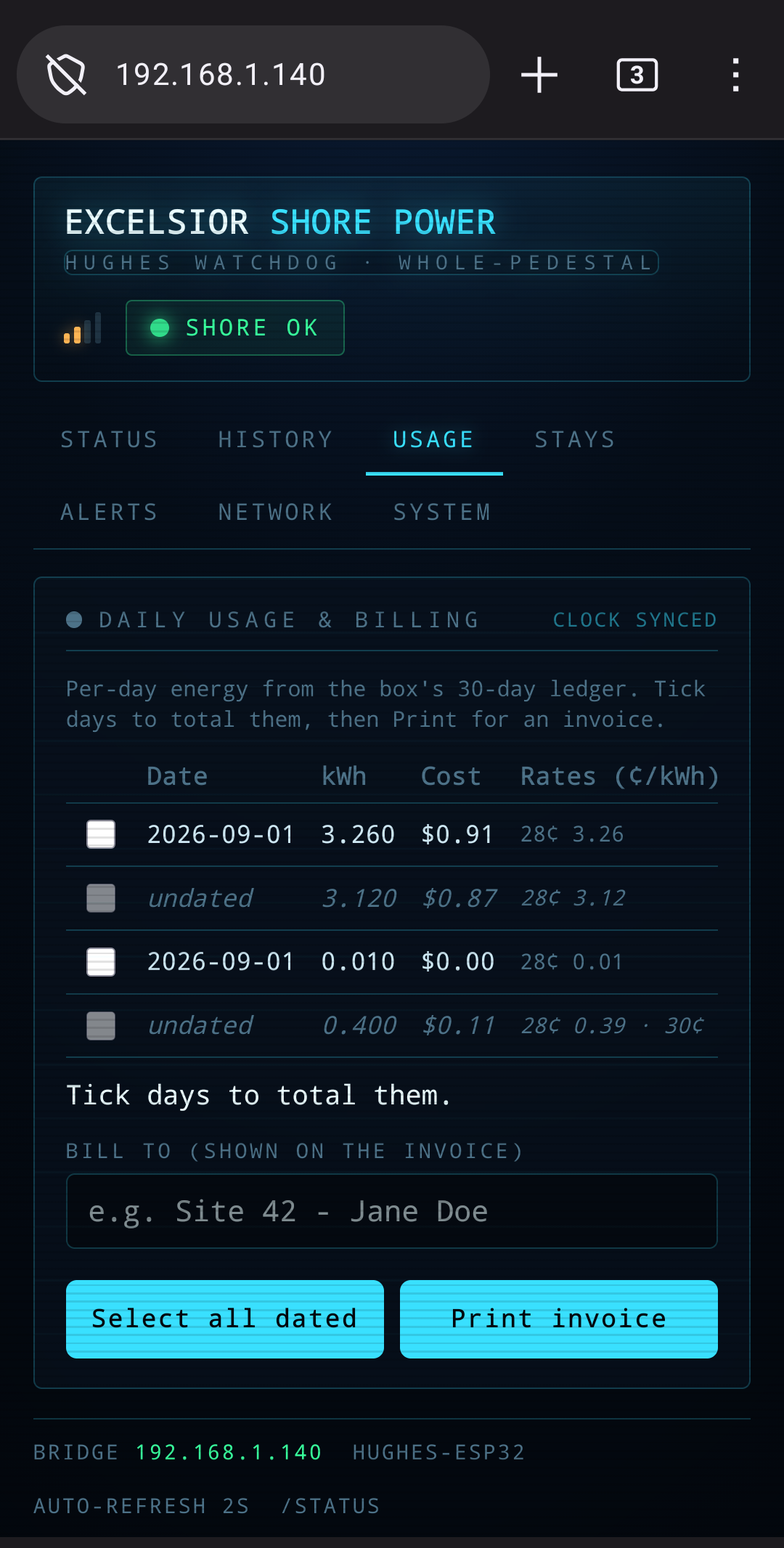
(If the diary says "Clock not set," the box just needs to learn the date — see the next page.)
Teaching the box the time
To keep its diary and date its receipts, the box needs to know what day it is. With campground Wi-Fi it learns the time all by itself, so most people never see this page. But if the box has been unplugged a long while, or the Wi-Fi has no internet, it may ask for a hand — and it'll show one of two amber words:
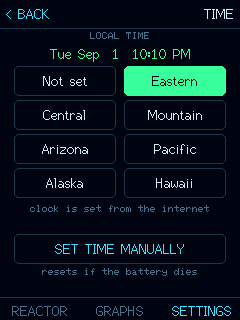
- SET THE CLOCK — the box doesn't know the time at all. Easiest fix: open the phone page → System tab → Set clock from this phone. Your phone always knows the time; this just shares it. (Perfect for campgrounds with no internet.)
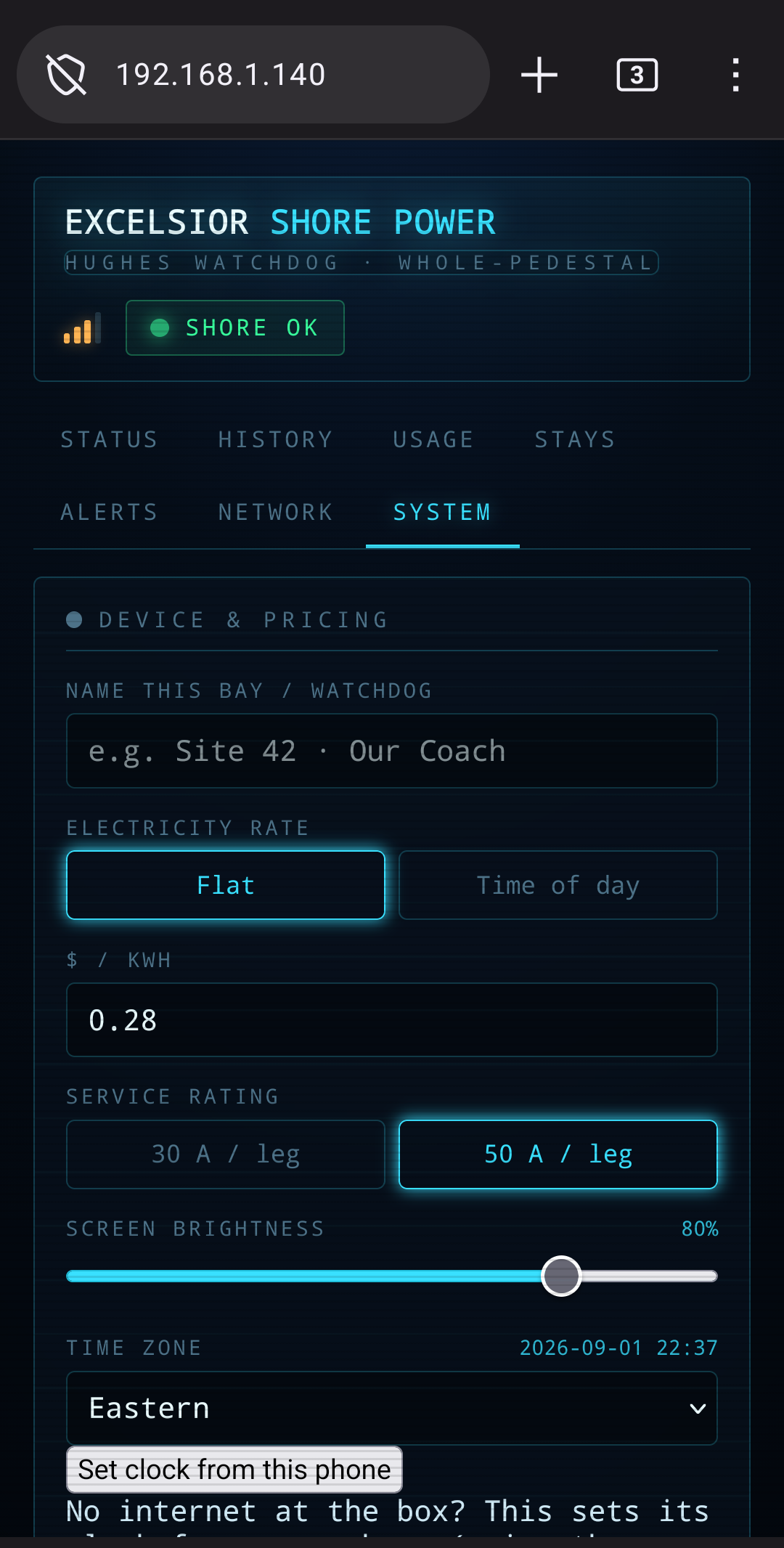
Phone page — System - PICK TIME ZONE — it knows the time, but not where you are. On the box: SETTINGS → TIME, then tap your time zone.
The shortcut: whichever amber word shows on the main screen, just tap the word — the box takes you straight to the right place.
If you're ever stuck: the HELP screen
On the box, SETTINGS → HELP shows a square code. Scan it with your phone and this very guide opens up. (There's also a small ? in the top corner of the settings list that does the same thing.)
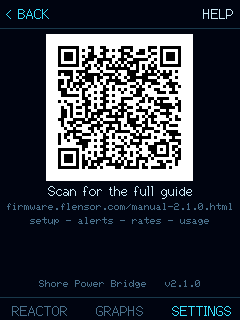
The bottom of the HELP screen shows your box's name and firmware version — handy to read out if you ever call for a hand.
Little things
All under SETTINGS:
- Screen too bright at night? SYSTEM → slide the brightness down.
- Turning it off: SYSTEM → POWER OFF. It naps; tap the screen to wake it.
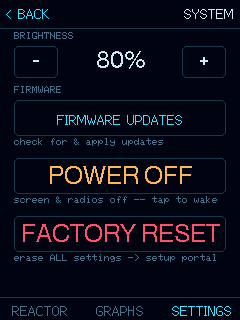
System (on the device) - No campground Wi-Fi at all? Under STATUS → NETWORK the box can make its own little network, called the HOTSPOT — your phone joins the box directly to see its page (you just won't get phone alerts without internet).
- Clock or time zone off? See "Teaching the box the time."
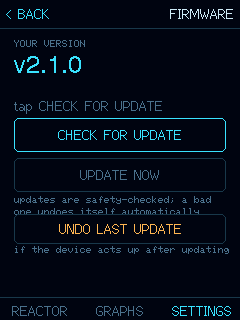
- Free improvements: SYSTEM → FIRMWARE UPDATES → CHECK FOR UPDATE, then UPDATE NOW if one is offered. It takes a couple of minutes and finishes on its own. (UNDO LAST UPDATE puts things back if you change your mind.)
Step-by-step guide
This chapter is a quick-reference: the most common jobs, each boiled down to a few taps. No need to read it straight through — just skip to the one you need. Every step starts with [box] (a tap on the box's screen) or [phone] (a tap on the phone page), so you always know where your finger goes.
Getting connected
1. First-time setup — join your campground Wi-Fi
- [box] Plug the box in. It shows FIRST-TIME SETUP with a big square code.
- [phone] Point your phone's camera at the code and tap the pop-up.
- [phone] A page opens. Pick your campground's Wi-Fi from the list and type its password — the same one your phone uses.
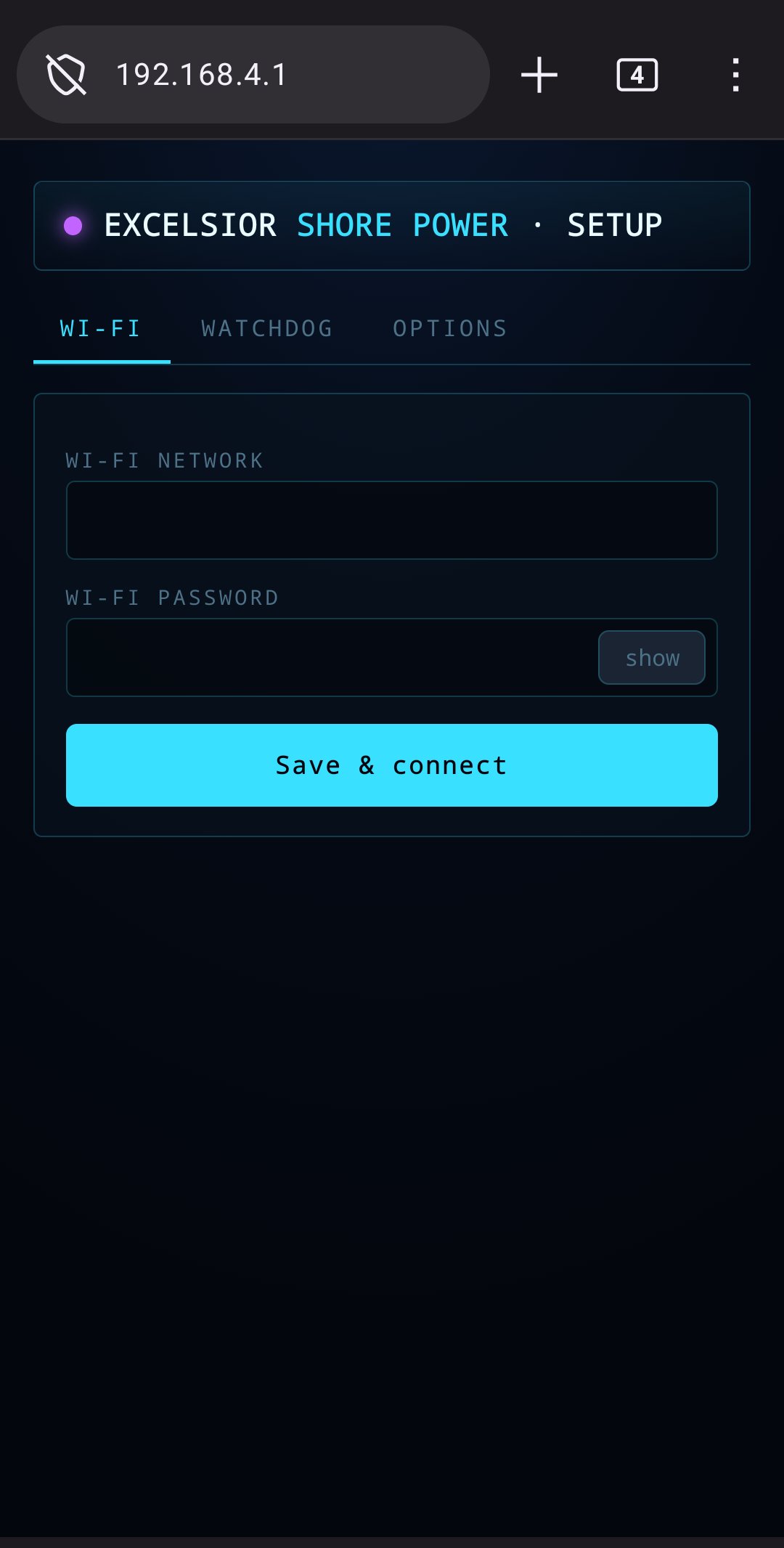
The Wi-Fi setup page - [box] That's it — the box joins the Wi-Fi, finds the Watchdog on its own, and shows your power within a minute.
2. No campground Wi-Fi? Switch to the HOTSPOT
The box can make its own little network, so your phone can still see its page. (The one trade-off: without internet, it can't buzz your phone.)
- [box] From the main screen, tap STATUS, then NETWORK.
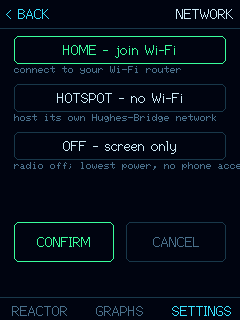
Network (on the device) - [box] Tap HOTSPOT, then CONFIRM. The box restarts into its own network — give it a minute.
- [box] Tap SHOW QR CODE.
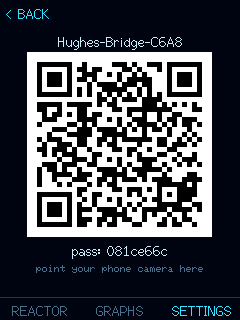
The hotspot join code - [phone] Point your phone's camera at the code and tap the pop-up — your phone joins the box's own network and the page opens, same as always.
3. Switch from the HOTSPOT back to home Wi-Fi
- [box] STATUS → NETWORK, then tap HOME.
- [box] The box asks which Wi-Fi you mean. Back somewhere it already knows? Tap USE SAVED — done.
- [box] Somewhere new? Tap SET UP NEW and follow the next walkthrough.
4. Move to a new campground — change the Wi-Fi network
The old campground's Wi-Fi doesn't reach here, so you teach the box the new one — the same easy dance as the first day.
- [box] STATUS → NETWORK → HOME, then tap SET UP NEW. A square code appears.
- [phone] Scan the code. The Wi-Fi page opens on your phone.
- [phone] Pick the new campground's Wi-Fi and type its password. The box joins, and everything carries on as before.
5. Open the box's page on your phone
- [box] Tap SETTINGS, then WEB PORTAL. A square code appears.
- [phone] Point your camera at it and tap the pop-up. The page opens.
- [phone] While it's open, save it to your home screen — next time it's one tap away.
Phone alerts
6. Turn ON phone alerts
- [box] SETTINGS → ALERTS, then tap SET UP MY PHONE. A square code appears.
- [phone] Scan it and tap the pop-up. Your phone offers the small free ntfy app the messenger that delivers the box's alerts — install it, open it once, and allow notifications if it asks.
- [box] Back on the box, make sure alerts are switched ON.
- [box] Tap SEND TEST ALERT — your phone should buzz within a few seconds.
7. Send a test alert (and fix "no buzz")
- [box] SETTINGS → ALERTS → SEND TEST ALERT.
- [phone] No buzz? Open the little ntfy app and allow notifications when it asks.
- [box] Tap SEND TEST ALERT once more. That fixes it nearly every time.
8. Choose which alerts buzz you — and what each one means
- [phone] Open the phone page and tap the Alerts tab.
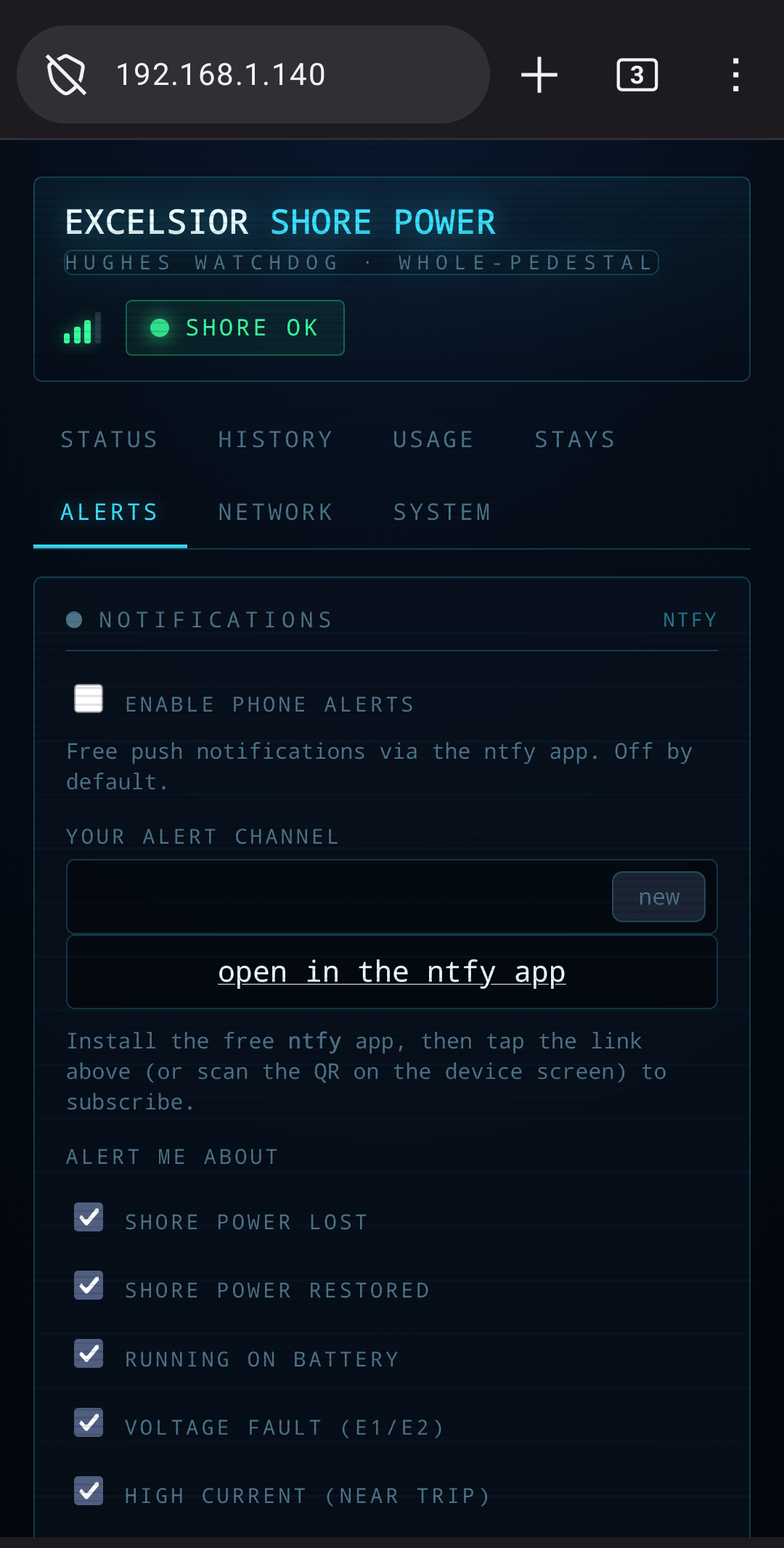
Phone page — Alerts - [phone] Tick the ones you want; untick the ones you don't. Leave them all on and you're well covered.
Here's what each one means, in plain English:
Table scrolls sideways on a small screen →
| The alert | What it means |
|---|---|
| Shore power lost | The pedestal stopped feeding your rig. Worth a look at the pedestal breaker. |
| Shore power restored | The power came back on — all is well again. |
| Running on battery | Your rig is drawing from its own batteries instead of the pedestal. |
| Voltage fault (E1/E2) | The pedestal's voltage looks unhealthy — too high or too low. Worth telling the office. |
| High current (near trip) | You're using close to the breaker's limit — turn something off before it trips. |
| Watchdog lost | The box stopped hearing the pedestal gadget. It usually reconnects on its own. |
| Watchdog reconnected | The box hears the Watchdog again — nothing for you to do. |
9. Set up the daily "all good" heartbeat (and turn it off)
- [phone] On the Alerts tab, find the daily check-in and pick an hour you like.
- [phone] Once a day at that hour, your phone gets a cheerful "all good" — so silence means something's actually wrong, not that the messenger quit.
- [phone] To turn it off later, switch it off in the same spot.
(One small thing: the heartbeat needs the clock set — see the Clock walkthroughs below.)
10. Turn OFF phone alerts
- [box] SETTINGS → ALERTS.
- [box] Tap the ON/OFF switch — then tap it once more. (It asks twice on purpose, so a stray tap can't quietly silence your alerts.)
- [phone] Prefer the phone? The Alerts tab has the same switch.
Money & guests
11. Set your electricity price (flat rate)
- [box] SETTINGS → ENERGY & RATE.
Electricity price & totals - [box] Tap + and − until the price per kWh matches what the campground charges. Not sure? Ask the office — it's usually 10 to 40 cents.
- [phone] Prefer the phone? The System tab has the same $/kWh setting.
12. Set a time-of-day price schedule
Only for campgrounds that charge different prices at different hours — most people never need this one.
- [phone] On the System tab, tap Time of day.
- [phone] Add your price tiers — say, one price for daytime and another for night — until all 24 hours are covered. The page checks the coverage for you and says if any hours are missing.
- [phone] Save. (This one needs the clock set, so the box knows what hour it is.)
13. Check a guest in
- [phone] Open the phone page and tap Stays.
Phone page — Stays - [phone] Type your guest's name — and their site, if you like.
- [phone] Tap Check in. The box notes the meter reading. (One guest at a time — check the last one out before checking the next one in.)
14. Check a guest out and print their receipt
- [phone] On the Stays tab, tap Check out. (It asks "are you sure?" — that's normal.)
- [phone] In the list below, tap view next to their stay. Their receipt opens.
A guest's receipt - [phone] Tap Print / Save PDF — print it at the office, or just show them your phone.
Forgot to check them out? No harm done — the receipt still uses the real meter readings, and after about two quiet days the box checks them out for you. And the receipt's "Power available" line vouches that the pedestal stayed on during their stay.
15. Print a daily-usage invoice
- [phone] Open the Usage tab.
- [phone] Tick the days you want on the bill.
- [phone] Type who it's for in Bill to, then tap Print invoice.
(Billing a guest? Use their stay receipt or a daily invoice — one or the other, never both, so nobody pays for the same power twice.)
16. Reset the running stay total (fresh site or new month)
- [box] SETTINGS → ENERGY & RATE.
- [box] Tap RESET STAY. The running total and its cost start over from zero.
- [phone] Or from the phone: the Reset running total button does the same thing.
(This only clears the counter — it never deletes any guest receipts.)
Clock
17. Set the clock from your phone (no-internet campgrounds)
- [phone] Open the phone page and tap the System tab.
- [phone] Tap Set clock from this phone. Your phone always knows the time; this just shares it. Done.
18. Pick your time zone
- [box] SETTINGS → TIME.
Time (on the device) - [box] Tap your time zone in the list. That's it.
Keeping it healthy
19. Update the firmware (check → update → undo)
Updates are free improvements. The box needs Wi-Fi with internet for this one.
- [box] SETTINGS → SYSTEM → FIRMWARE UPDATES.
Firmware updates - [box] Tap CHECK FOR UPDATE.
- [box] If one is offered, tap UPDATE NOW. It takes a couple of minutes and finishes all on its own — just leave the box plugged in and let it work.
- [box] Change your mind afterward? UNDO LAST UPDATE puts things back the way they were.
20. Change or replace the Watchdog it tracks
If a new Watchdog is ever installed at your pedestal, the box can switch over to it.
- [phone] Got a guest checked in? Check them out first — switching closes any open stay.
- [box] SETTINGS → DEVICES. The box looks around for nearby Watchdogs.
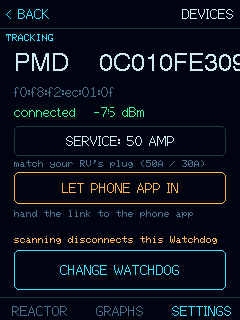
Devices (on the device) - [box] Tap the new one in the list, then tap SWITCH. The box restarts, now listening to the new unit.
- [box] The new Watchdog starts its totals fresh — and all your old receipts stay safe.
Extras
21. Reset the lifetime odometer
This is the box's lifetime grand total — like a car's odometer, you'll rarely (maybe never) want to zero it.
- [box] SETTINGS → ENERGY & RATE, then tap RESET ODOMETER.
- [box] The box asks to be sure — tap ZERO IT.
- [box] It politely refuses while a guest is checked in, to protect their receipt. Check them out first if you really mean it.
22. Factory reset
This erases the setup and starts the box from scratch — only do it if the person who gave you the box says to.
- [box] SETTINGS → SYSTEM.
System (on the device) - [box] Tap FACTORY RESET, then TAP AGAIN TO ERASE. (One tap alone does nothing — it asks twice on purpose.)
- [box] The box restarts showing FIRST-TIME SETUP, ready to be set up like new.
23. Send a diagnostics bundle to support
If you're on the phone with your helper and they ask for it:
- [phone] Open the System tab.
- [phone] Tap Send diagnostics. The box sends them a technical snapshot, and the button says so when it's done.
(It only happens when you tap the button — the box never sends anything on its own. Needs Wi-Fi with internet.)
24. Adjust screen brightness
- [box] SETTINGS → SYSTEM → slide the brightness up or down until it's comfortable.
- [phone] Or on the phone: the System tab has the same brightness control.
25. Power off and wake
- [box] SETTINGS → SYSTEM → POWER OFF. The screen goes dark — the box just naps.
- [box] Tap the screen to wake it. Everything is exactly as you left it.
26. Download all stays (CSV) for bookkeeping
- [phone] Open the Stays tab.
- [phone] Tap Download all stays. Your phone saves the whole guest list as a spreadsheet file a CSV — Excel and Google Sheets both open it.
If something looks wrong
Table scrolls sideways on a small screen →
| What you see | What to do |
|---|---|
| Dials show nothing / dashes | The box lost touch with the pedestal Watchdog. Wait a minute — it usually reconnects itself. Still nothing? Unplug the box and plug it back in. |
| The word SET THE CLOCK or PICK TIME ZONE | The box needs to learn the date. Tap the word and follow "Teaching the box the time." Your diary and receipts need it. |
| The word ALERTS OFFLINE | Phone alerts are on, but the box can't reach the internet right now. Your power numbers still work fine; check the campground Wi-Fi. |
| The word WEAK SIGNAL | The box is a bit far from the pedestal Watchdog. Move the box a little closer, or point it toward the pedestal. |
| A "not connected" message | The Wi-Fi hiccuped. The power numbers still work — but phone alerts need Wi-Fi. Unplug and replug the box. Keeps happening? The campground Wi-Fi password may have changed — pick it again on the phone page's Network tab, or ask your gift-giver. |
| No alerts on your phone | SETTINGS → ALERTS → SEND TEST ALERT. No buzz? Open the little ntfy app, allow notifications, test again. |
| I forgot to check a guest out | Just check them out now — the receipt uses the real meter readings, so nothing is lost. (After about two quiet days the box checks them out on its own.) |
| Everything seems confused | Unplug the box, count to ten, plug it back in. Fixes most things, loses nothing. |
(There's also a FACTORY RESET under SYSTEM. It erases the setup and starts from scratch — only use it if the person who gave you this box says to.)
A quick tour of every screen
A picture of each screen, so nothing ever feels unfamiliar.
On the box
On your phone
Word list (plain-English)
- Wi-Fi
- the wireless internet at your campground; the same network your phone and laptop use.
- QR code
- a square barcode your phone's camera can read; point the camera at it and tap the message that pops up.
- Volts
- the "pressure" of electricity coming in; around 120 is normal and healthy.
- Amps
- how much electricity is flowing right now, like how fast water moves through a pipe.
- Kilowatts (kW)
- the amount of power you're using at this moment; a hair dryer uses about one and a half.
- kWh (kilowatt-hour)
- a chunk of electricity used over time, like "miles" for power. Your electric bill is counted in these.
- Leg
- one of the two lines that carry power into a 50-amp hookup; think of two water pipes feeding your rig.
- Shore power
- the electricity your rig gets from the campground pedestal, instead of from batteries or a generator.
- The Watchdog
- the small gadget already installed at your pedestal; it measures the power and reports to the box.
- Stay
- the stretch of time between checking a guest in and checking them out; the box measures the electricity used in between.
- Check in / check out
- telling the box a guest has arrived or left, so it notes the meter reading, like the electric company does when you move house.
- Receipt
- the printable statement the box makes for one guest's stay: the dates, the electricity used, and the cost.
- Bluetooth
- a short-range radio that lets nearby gadgets talk without wires; it's how the box hears the Watchdog.
- Hotspot
- the box's own little Wi-Fi network, for campgrounds with no Wi-Fi at all; your phone joins the box directly.
- The ntfy app
- the small free phone app that delivers the box's alerts, like a doorbell for messages ("ntfy" is just its odd little name — say "notify").
- Heartbeat
- an optional once-a-day "all good" message to your phone, so silence means something's actually wrong.
- Time zone
- which clock region your campground is in; the box needs it to know what day it is.
- Firmware
- the built-in program that runs the box; an update is just a newer, improved version of it.
Enjoy — and may your fridge always stay cold.